TL;DR:
- Voice-to-text technology significantly speeds up documentation and communication tasks.
- Using quality hardware and quiet environments improves transcription accuracy.
- Scaling and habit-building are key to long-term efficiency gains with voice-to-text tools.
Picture this: you have 30 minutes to document a client meeting, draft a project update, and respond to three emails. Manual typing feels like running through mud. Voice-to-text technology flips that script entirely, letting you speak your thoughts at natural conversation speed while the software handles the transcription. Professionals and students who adopt it consistently report finishing documentation tasks in a fraction of the usual time. This tutorial walks you through everything you need: the right hardware, step-by-step setup for two leading platforms, troubleshooting for common headaches, and a clear way to measure your own productivity gains.
Table of Contents
- What you need to get started with voice-to-text
- Step-by-step: Using Google Docs Voice Typing
- How to use OpenAI Whisper for advanced transcription
- Common mistakes and troubleshooting tips
- Measuring productivity gains and next steps
- The real secret to voice-to-text success: Beyond the tools
- Ready to supercharge your workflow? Try AI-powered voice solutions
- Frequently asked questions
Key Takeaways
| Point | Details |
|---|---|
| Quick setup options | Google Docs and OpenAI Whisper make it easy to start transcribing your speech to text quickly. |
| Boosted productivity | Voice-to-text tools can cut writing and documentation time by as much as 50 percent. |
| Troubleshooting matters | Quality audio and minimizing noise are more important for accuracy than the choice of tool. |
| Flexible scaling | You can start simple and integrate advanced APIs like Whisper as your needs grow. |
What you need to get started with voice-to-text
Having set the stage for why voice-to-text is essential, let's review exactly what you'll need to get started. The good news is that you probably already own most of it.
Hardware basics:
- Any computer, smartphone, or tablet with a built-in microphone works as a starting point
- A quiet room matters more than expensive gear, at least initially
- External USB or condenser microphones dramatically cut background noise pickup
- Headsets with close-range mics are ideal for open office environments
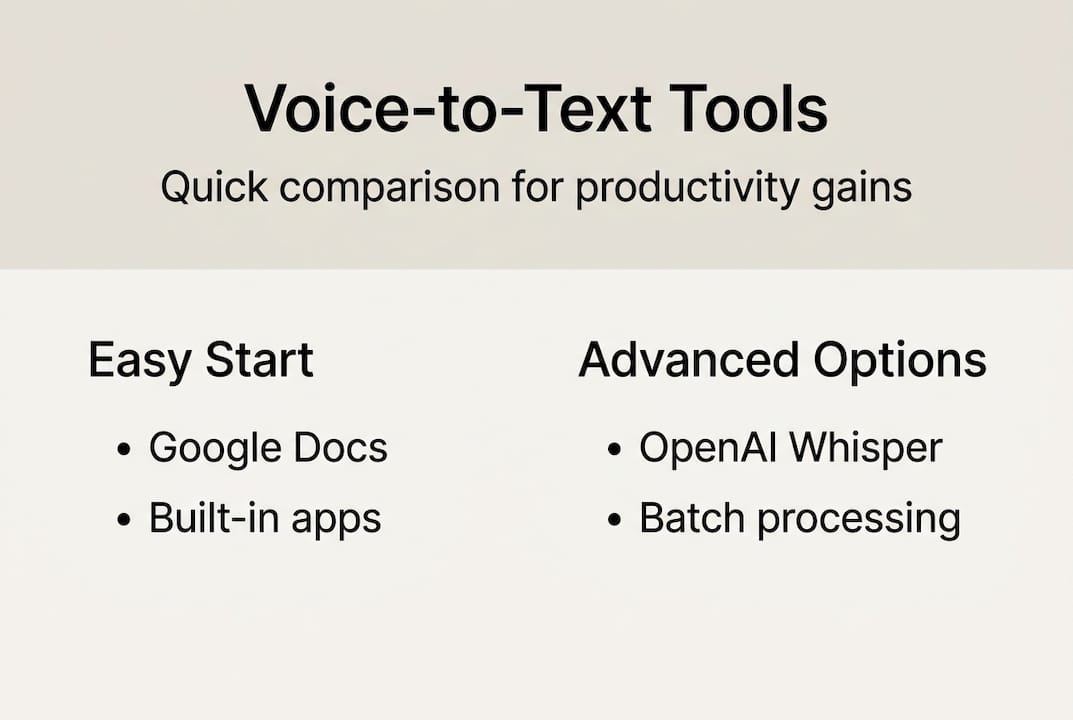
For software, your main options range from zero-cost browser tools to powerful open-source libraries. Google Docs Voice Typing supports 100+ languages and performs best inside Chrome, and pairing it with an external microphone noticeably sharpens accuracy. On the developer side, OpenAI Whisper lets you load a model and transcribe audio files with just a few Python lines, offering model sizes from tiny to large so you can trade speed for accuracy depending on your workload.
To understand how these tools fit into a broader AI ecosystem, the AI voice chat explained resource breaks down the underlying mechanics, and the voice recognition AI guide covers how modern recognition engines actually work.
| Platform | Pros | Cons | Ease of use |
|---|---|---|---|
| Google Docs Voice Typing | Free, 100+ languages, no install | Chrome only, needs internet | Very easy |
| OpenAI Whisper | Offline capable, highly accurate | Requires Python setup | Moderate |
| Mobile voice assistants | Always available, hands-free | Limited editing control | Easy |
| Cloud speech APIs | Scalable, customizable | Paid, developer knowledge needed | Advanced |
Pro Tip: Before investing in a premium microphone, test your built-in mic in a quiet room first. You may find it's already good enough for basic transcription tasks.
Step-by-step: Using Google Docs Voice Typing
With your setup ready, follow these steps to transcribe text quickly using tools you already own.
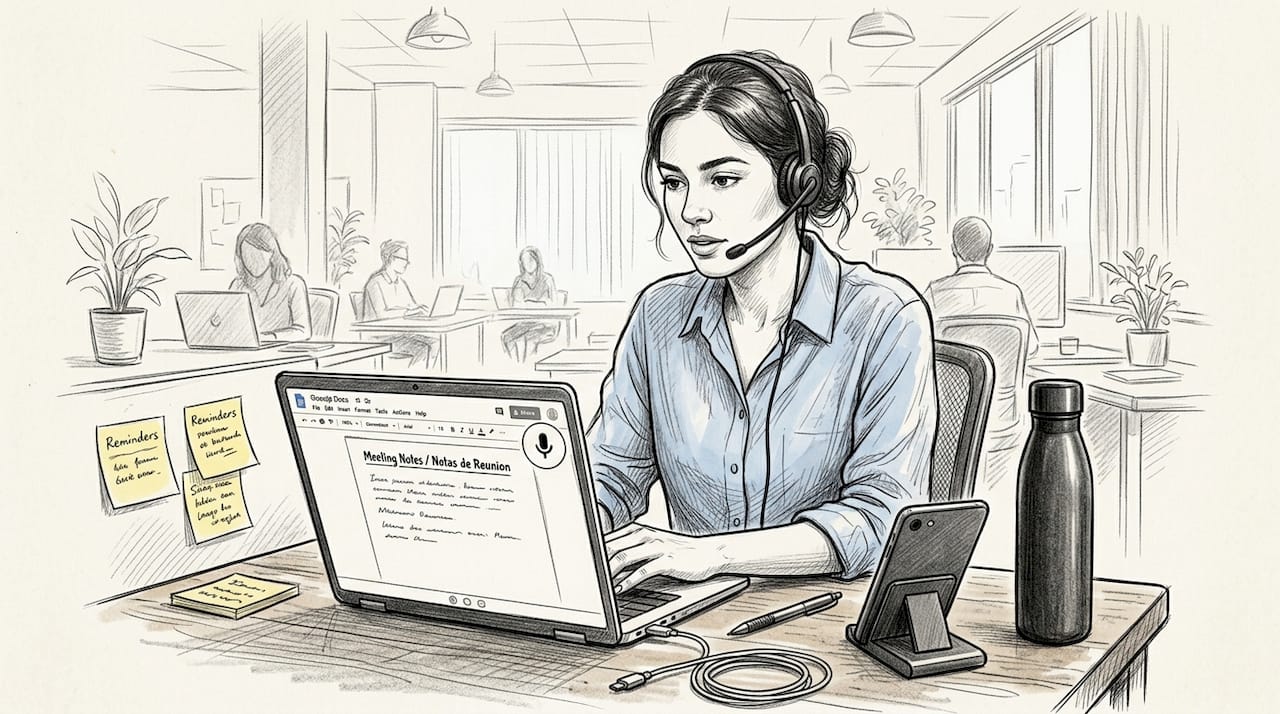
Google Docs Voice Typing is the fastest way to go from zero to transcribing. Here is the exact process:
- Open Google Chrome and navigate to Google Docs
- Create a new document or open an existing one
- Click Tools in the top menu, then select Voice typing
- A microphone icon appears on the left side of your document
- Click the microphone to activate it; it turns red when listening
- Speak clearly at a natural pace, slightly slower than casual conversation
- Use voice commands like 'period' and 'new line' to handle punctuation and formatting
- Click the microphone again to stop recording
A few habits make a real difference in output quality. Speak in complete phrases rather than word by word, because the engine uses surrounding context to improve word selection. Avoid trailing off at the end of sentences. If the tool misreads a word, correct it manually and keep going rather than stopping repeatedly.
"The single biggest accuracy improvement most users can make is simply moving to a quieter space. Software can only do so much with noisy audio."
This tool supports over 100 languages, which makes it genuinely useful for multilingual professionals. Pair it with the tips in this AI productivity guide to build a complete documentation workflow around it.
Pro Tip: Dictate your first draft without stopping to edit. Editing while speaking breaks your flow and slows the whole process down. Get it all out, then clean it up.
How to use OpenAI Whisper for advanced transcription
For those seeking greater flexibility or app integration, OpenAI Whisper offers powerful transcription features that go well beyond what browser tools can do.
Whisper is an open-source model you run locally or in the cloud. Installation takes under a minute:
- Make sure Python 3.8 or higher is installed on your machine
- Run "pip install openai-whisper` in your terminal
- Install ffmpeg if you haven't already (required for audio processing)
- Load a model in Python:
import whisper; model = whisper.load_model("base") - Transcribe a file:
result = model.transcribe("audio.mp3"); print(result["text"])
The model size you choose directly affects the speed and accuracy tradeoff. Whisper supports multiple model sizes that let you match the tool to your hardware and time constraints.
| Model size | Speed | Accuracy | RAM needed |
|---|---|---|---|
| Tiny | Very fast | Lower | ~1 GB |
| Base | Fast | Good | ~1 GB |
| Small | Moderate | Better | ~2 GB |
| Medium | Slower | High | ~5 GB |
| Large | Slowest | Highest | ~10 GB |
For most professionals transcribing meeting notes or lectures, the base or small model hits the sweet spot. Developers building production pipelines should test medium or large for critical accuracy requirements. The speech recognition for developers guide covers integration patterns for scaling this into real applications.
Pro Tip: Batch your audio files and run Whisper overnight on longer recordings. You wake up to clean transcripts without any real-time waiting.
Common mistakes and troubleshooting tips
Even with great tools, results vary. Here's how to sidestep common pitfalls and maximize your accuracy.
The most frustrating voice-to-text experiences almost always trace back to one of three root causes: audio quality, speech patterns, or environment. Understanding each one helps you fix problems fast.
The biggest accuracy killers:
- Background noise from fans, traffic, or open offices degrades recognition significantly
- Overlapping speech (two people talking at once) can push word error rates above 50%
- Accents and non-native pronunciation increase error rates by 30 to 50% compared to standard native speech
- Telephony or heavily compressed audio (low bitrate recordings) strips out frequencies the model relies on
- Speaking too fast or mumbling between words causes substitution errors
How to fix common issues:
- Upgrade to a directional or noise-canceling microphone
- Record in a small, soft-furnished room to reduce echo
- Speak at 80% of your natural speed until accuracy improves
- Use a pop filter to reduce plosive sounds (p, b, t sounds that cause distortion)
- Review and correct transcripts immediately while context is fresh
Pro Tip: If you have a strong accent, spend 10 minutes running short test recordings and reviewing errors. You'll quickly identify the specific words or sounds that trip up the model, and you can adjust your pronunciation for those cases only.
For a broader view of how to get the most from AI tools in your workflow, the AI best practices resource covers environment setup and tool configuration strategies.
Measuring productivity gains and next steps
Once you're up and running, how do you know it's working for you?
The numbers are clear: AI tools yield 15 to 50% reductions in task time for writing, support, and documentation work, with newer users often seeing the largest gains because they start from a lower baseline.
To measure your own improvement, try this simple self-assessment:
- Time yourself completing a standard documentation task manually (set a baseline)
- Complete the same type of task using voice-to-text
- Compare total time including any editing needed after transcription
- Repeat over two weeks to account for the learning curve
| Method | Avg. time per 500 words | Editing needed | Best for |
|---|---|---|---|
| Manual typing | 20 to 30 min | Minimal | Precise, structured writing |
| Voice-to-text | 8 to 12 min | Light cleanup | Drafts, notes, emails |
| API integration | 2 to 5 min | Automated | High-volume workflows |
Once you see consistent gains, the natural next step is scaling up. Moving from browser tools to API-based solutions like AI productivity models unlocks batch processing, custom vocabulary, and integration with your existing tools. For content teams, pairing transcription with structured AI content workflows can turn raw spoken notes into polished drafts with minimal manual effort.
The real secret to voice-to-text success: Beyond the tools
With measurable gains in hand, it's worth stepping back to see what truly makes voice-to-text stick long term.
Most people who try voice-to-text and abandon it spent too much time debating which platform to use and not enough time building the habit. The honest truth is that audio quality matters more than the model you pick, especially at the beginner stage. A great microphone with a free tool beats a premium API with a laptop's built-in mic every single time.
The open-source versus commercial debate is real but often irrelevant until you hit scale. For daily note-taking or student documentation, free tools are more than sufficient. The professionals who see the biggest long-term gains are those who start simple and refine their process incrementally rather than trying to build the perfect system on day one.
Batch processing versus real-time streaming is another false choice for most users. Real-time feels exciting, but batch workflows (recording first, transcribing later) often produce cleaner results because you're not trying to speak and monitor output simultaneously. Build the routine first. Optimize the tooling second. That sequence is what separates the people who actually stick with voice-to-text from those who try it for a week and go back to typing. For teams looking to scale this thinking across an organization, the AI for business guide covers adoption strategies that actually work.
Ready to supercharge your workflow? Try AI-powered voice solutions
You now have a complete picture of how to set up, use, and optimize voice-to-text tools for real productivity gains. The next step is putting it into practice with a platform that brings everything together.
Sofia AI assistant combines natural voice chat with speech recognition, access to over 60 leading AI models, and document analysis tools in one secure platform. Whether you're a student capturing lecture notes, a developer building transcription pipelines, or a business professional streamlining documentation, Sofia gives you the tools to work faster without sacrificing quality. Explore the platform and see how AI-powered voice features can fit directly into your daily workflow.
Frequently asked questions
Which voice-to-text tool is best for beginners?
Google Docs Voice Typing is the easiest free option for most users on desktop or laptop, requiring no installation and working directly in your browser.
How accurate is voice-to-text for different accents?
Error rates for accents and non-native speakers can be 30 to 50% higher than for standard native speech, particularly in noisy environments, but using a quality microphone and quieter space closes much of that gap.
Can I use voice-to-text offline?
OpenAI Whisper runs offline using local Python models, making it a strong choice when internet access is unreliable; most browser-based tools require a live connection.
What are common mistakes with voice-to-text, and how do I fix them?
The most frequent issues are background noise and poor microphone quality. Reducing ambient sound and using a directional mic resolves the majority of accuracy problems most users encounter.
Does voice-to-text save time for professionals or students?
Research shows voice-to-text can reduce documentation time by 15 to 50%, with the largest gains going to newer users who are still building their typing speed and workflow efficiency.